
Guide navigation
Notes & backlinks
Updated
Every person in Handshake carries a note: structured fields up top, a free-form markdown scratchpad below. It's where the real thinking about a person lives – and writing a name in it wires your graph together.
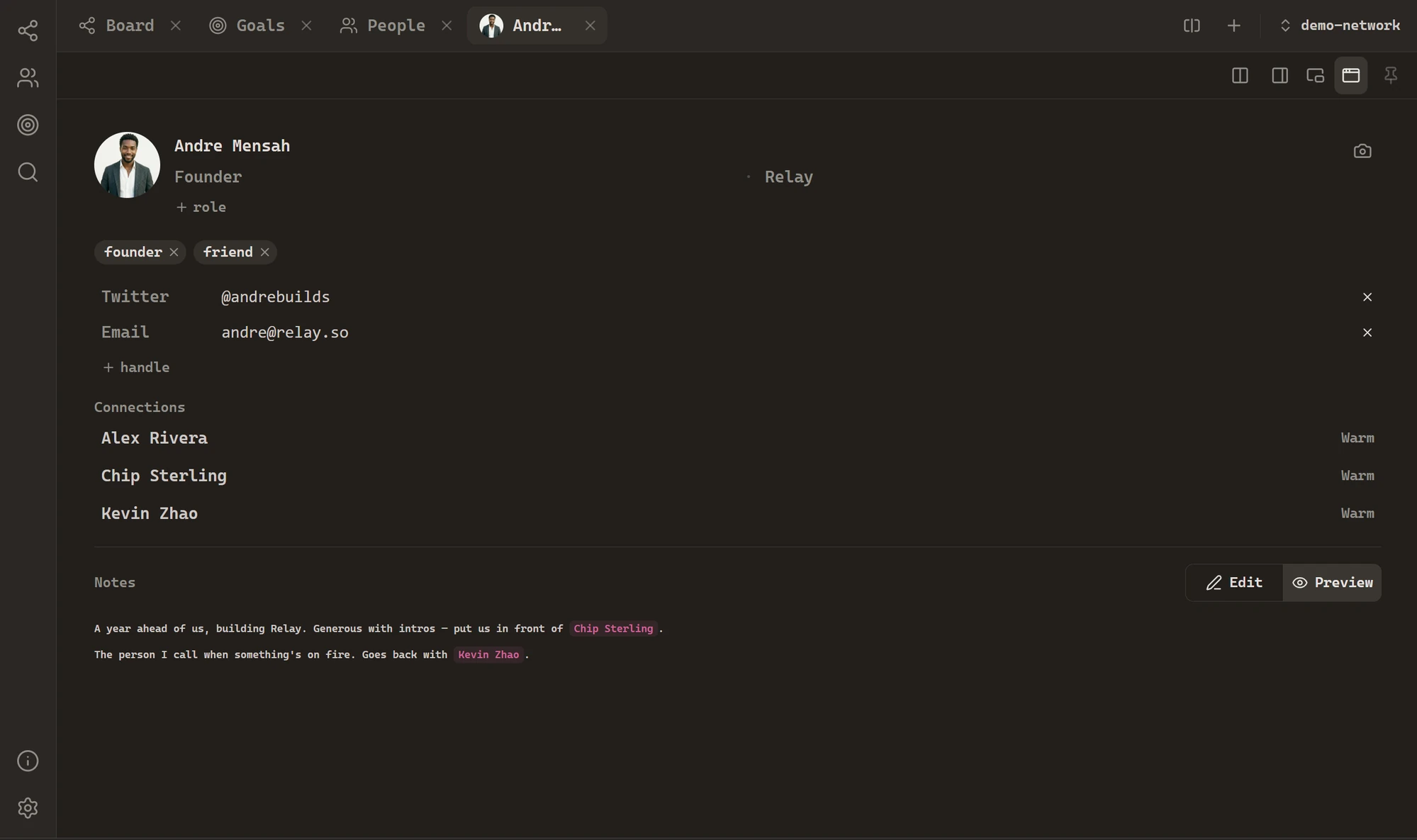
Anatomy of a note
Click anyone and their note slides in. The top half is structure: photo, name, role and company, tags, handles (Twitter, email, anything), and their connections with the warmth of each tie. The bottom half is prose – a markdown field with an Edit / Preview tumbler.
The markdown is the real thing: headings, lists, tables, task lists, links. Notes autosave as you type, straight into the person's .md file on disk.
Backlinks – write a name, draw a line
Type [[ anywhere in a note and Handshake autocompletes from your people. Pick one – say [[Sarah Chen]] – and three things happen:
In the note, the mention renders as a rose chip you can click to jump straight to Sarah. On the board, a dotted rose lineappears between the two people (unless a real tie already connects them). And Sarah's card grows a little with each inbound mention – the people your notes orbit become visually central.
Mention someone who doesn't exist yet and the chip renders dimmed – a quiet marker of a person worth adding. Backlinks are derived, never stored: they live in your prose, not in a hidden database, and they never rewrite the tie strengths you set by hand.
Highlights
Wrap text in ==double equals== and it renders as a soft pastel highlight – yellow by default, or pick a color like ==this=={green}. Right-click any highlight (in preview or in the editor) to recolor or remove it from a small palette. The colors are tuned to read gently on every theme.
Auto-highlighted keywords
In Settings → Notes you can define keywords– words that highlight themselves in a chosen color wherever they appear across all notes. Handy for things you always want to spot: "intro", "follow up", a project name.